
Planning: one board and one calendar for all your SEO work
Fixes from your site audit, gaps from your competitors and articles from your content plan land in one place. Move them across a task board, see them on a calendar, and assign them to your team or to anyone by email.
Starts on Essential: $89 a month. Assigning tasks to people: Professional and up.
Where your tasks come from
Most tasks are created for you, from the data Rankfender measures.
Site audit fixes
In the Optimizer, “Add to tasks” turns an issue into a task, with what to fix, why and how.
Competitor gaps
In Competitor Intelligence, “Plan it” on a missing keyword and “Write a better one” on a competitor's top page add the work to your plan.
Your content plan
Articles from your keywords appear on the calendar with their planned date, ready to write or publish.
Your own tasks
Add any task by hand: a title, a type, a date and, on Professional and up, a person.
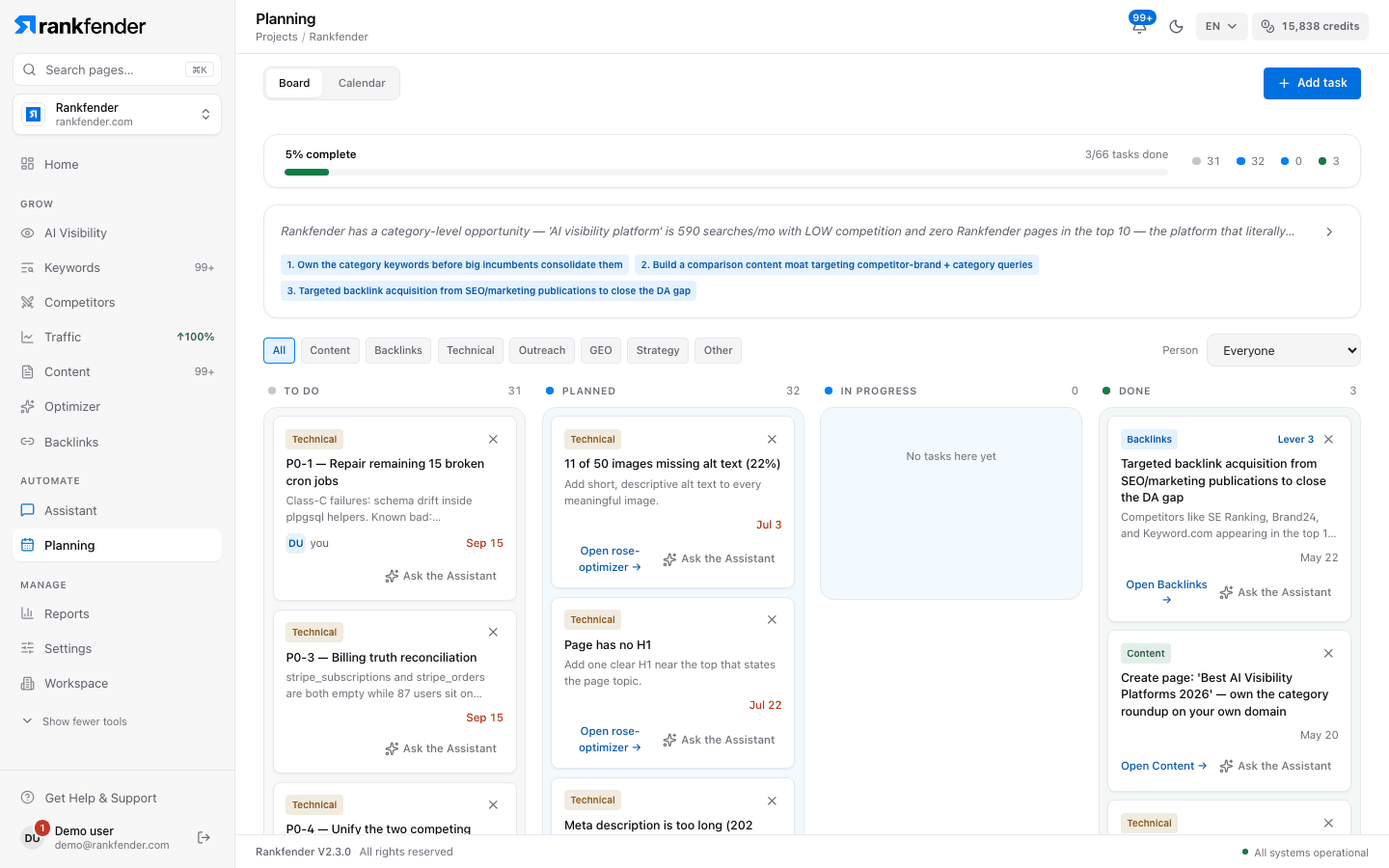
The task board
Every task sits in one of four columns: To do, Planned, In progress and Done. A progress bar shows how much of the plan is finished.
- Filter by type: content, backlinks, technical, GEO, strategy and other
- Filter by person: everyone, me, unassigned or guests
- Open a task to assign it, mark it done or ask the Assistant
- “Ask the Assistant” explains a task: why it matters, the steps, the expected outcome and the effort
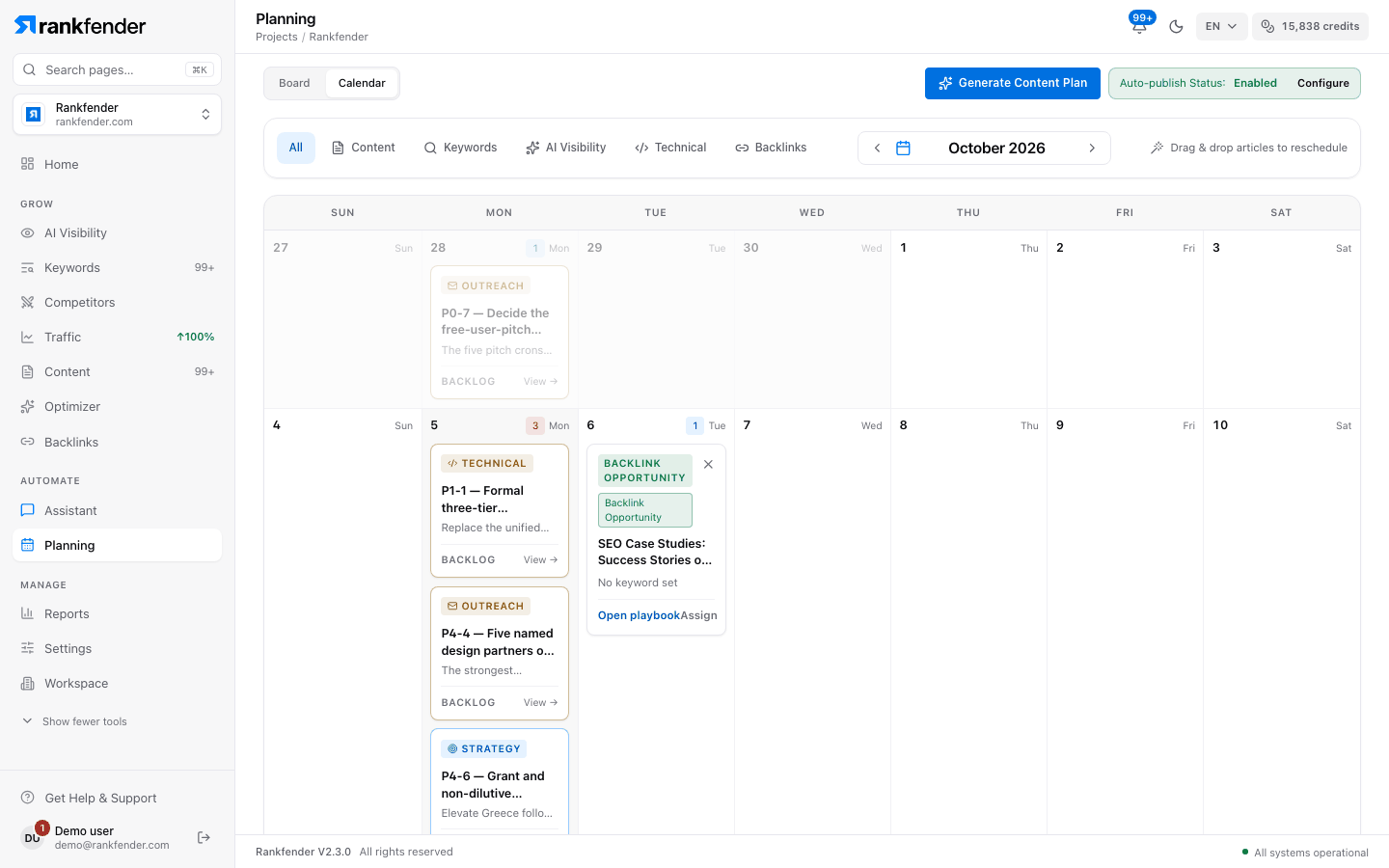
The editorial calendar
The calendar shows your articles and dated tasks month by month. Filter it by content, keywords, AI visibility, technical work or backlinks, and drag an article to another day to reschedule it.
Generate a content plan from your keywords, up to 7 articles per run. The autopilot status shows whether articles publish on their own after quality review.
Assign a task to anyone
On Professional and up, any task can go to a team member or to an outside collaborator by email.
Choose a person
Open the task, choose Assign, and pick a team member or type any email address.
They get an email
The email holds the task and a link to it. A guest needs no Rankfender account.
They update it
On the task page, a guest can update progress, mark the task done and leave a comment.
Reminders go out
An email the day before a task is due, and a list of overdue tasks on Mondays.
Team roles
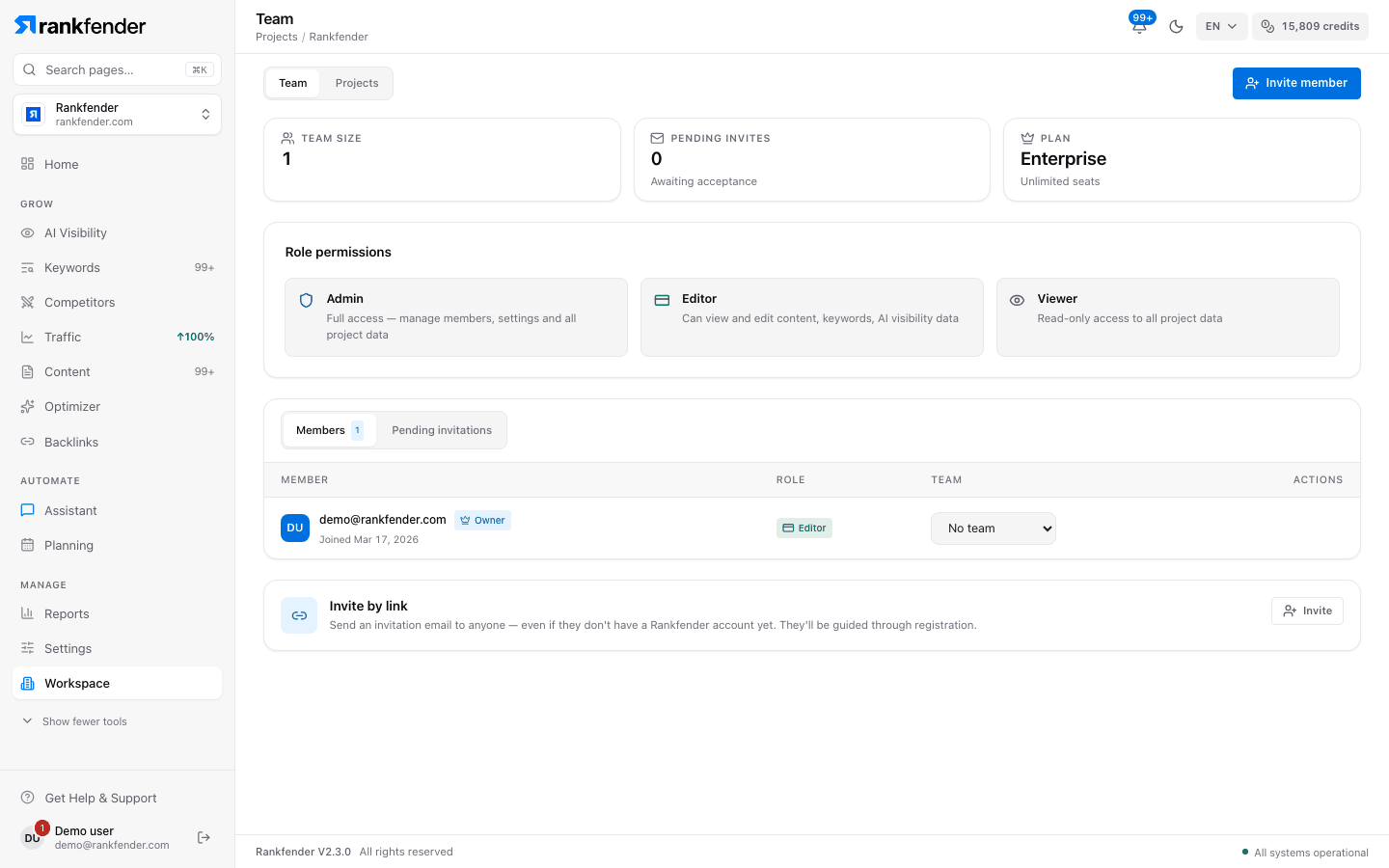
Invite teammates by email or by link. Each one gets a role: Admin manages members, settings and all project data; Editor can view and edit content, keywords and AI visibility data; Viewer has read-only access.
What each plan includes
| Essential | Professional | Business | Agencies | |
|---|---|---|---|---|
| Task board and calendar | Yes | Yes | Yes | Yes |
| Assign tasks by email, with reminders | — | Yes | Yes | Yes |
| Team seats | 1 | 1 | 5 | Unlimited |
Frequently asked questions
Do guests need a Rankfender account?
No. A guest receives an email with a link to the task. On that page they can update progress, mark the task done and leave a comment, without signing up.
Which plans can assign tasks to people?
Professional, Business and Agencies. On Essential, the board and the calendar work in full, without assigning tasks to people.
When are reminders sent?
Each person gets an email the day before a task is due. Overdue tasks are listed in a reminder on Mondays.
How many teammates can I invite?
Essential and Professional include 1 seat, Business 5 and Agencies unlimited. Roles are Admin, Editor and Viewer.
Can I reschedule an article?
Yes. Drag it to another day in the calendar.
What does “Ask the Assistant” do on a task?
It explains the task with your project's data: why it matters, the steps to take, the expected outcome and the effort it needs.
Put all your SEO work on one plan
Audit fixes, competitor gaps and articles on one board and one calendar, with the people who will do them.